Purpose
This article explains how to configure 3CX, MicroSIP, and Zoiper using a device created in the CONTAQT system.
The same credentials are used for all softphones and PBXs.
Step 1: Create a device in CONTAQT
Before configuring any softphone or PBX, you must create a device.
Go to Devices
Click Create Device
Click Save
Once the device is created, all required credentials will be available.
Device credentials (IMPORTANT)
After saving the device, you will see the following information:
Username
Format:dfollowed by numbers
Example:d12333Password
Displayed on the right side of the usernameDomain / SIP Server
Format:a<account_number>.sip.ioExample:
For account 1001 →a1001.sip.io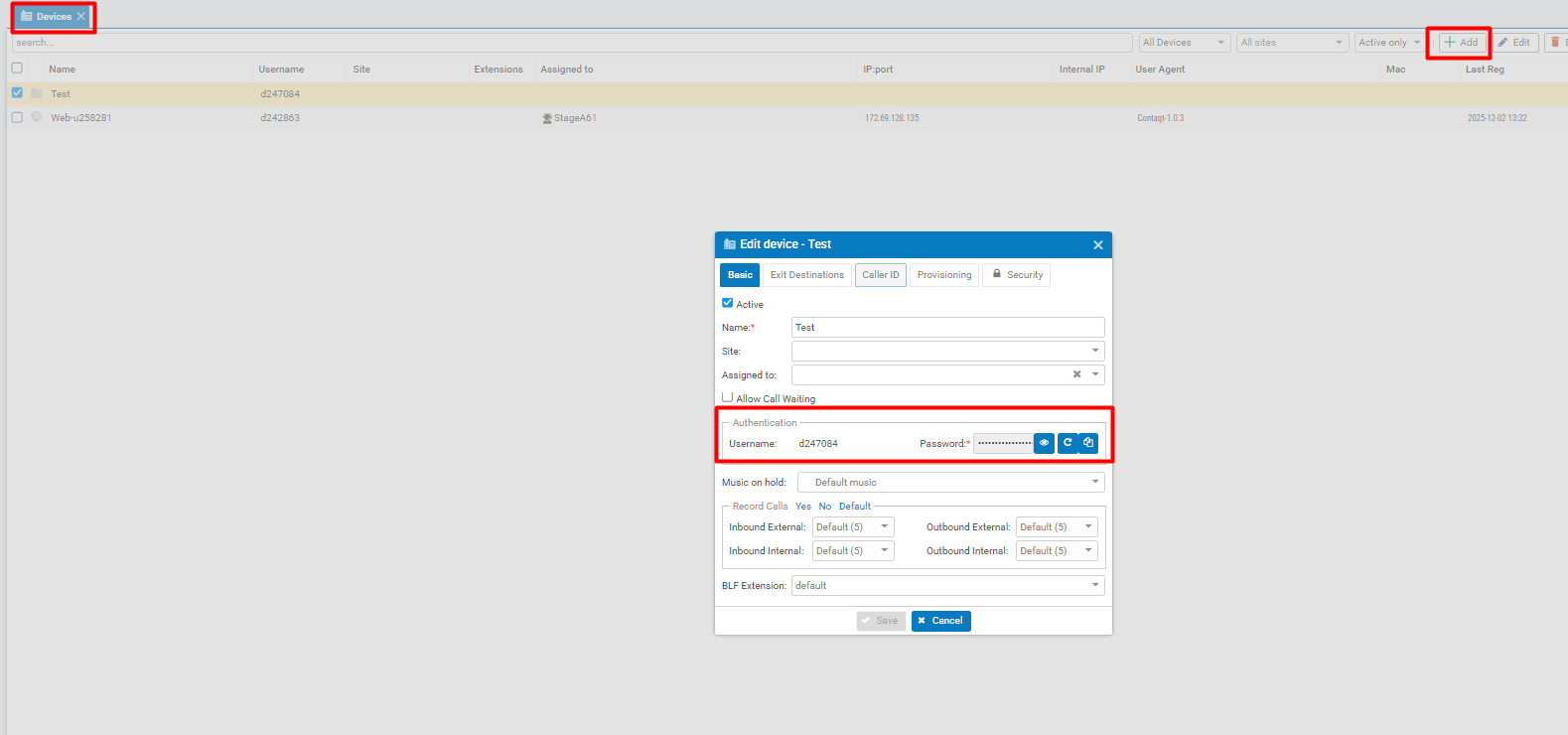
✅ This information is all you need to configure any SIP device.
How to set up MicroSIP
Open MicroSIP
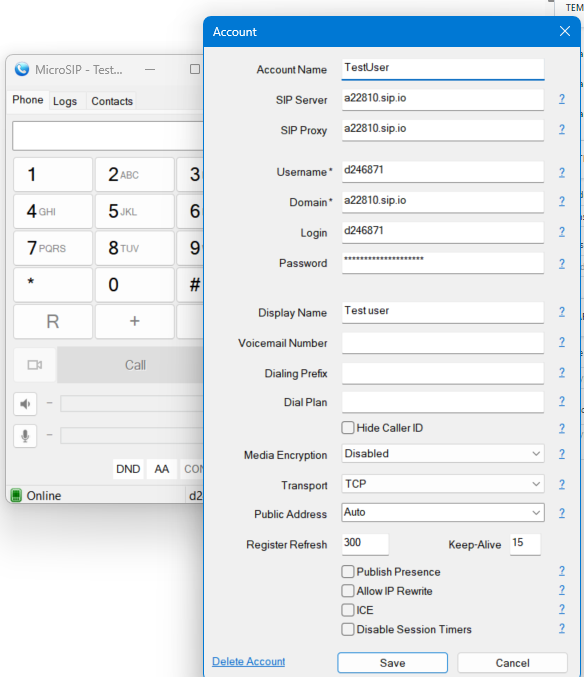
Go to Menu → Add Account
Fill in:
SIP Server / Domain:
a1001.sip.ioUsername:
d12333Password: device password
Display name: optional
Save the configuration
Register the account
If configured correctly, the status will show Registered.
How to set up Zoiper
Open Zoiper
Add a new account
Choose SIP account
Fill in the correct information for example:
Username:
d12333Password: device password
Domain / Host:
a1001.sip.io
Save and register
Once registered, the account is ready to make and receive calls.
How to set up 3CX
Create the extension
Log in to the 3CX
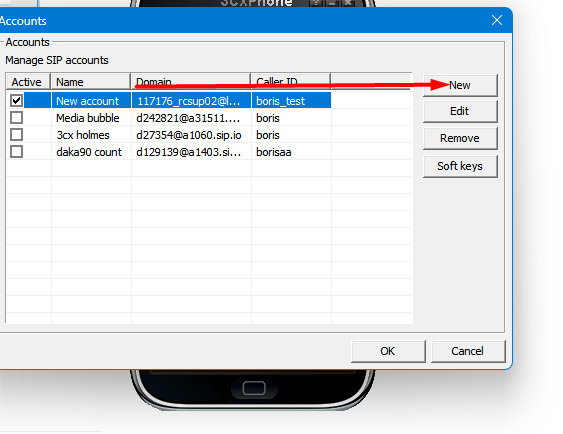
Right click -> Accounts
Click on new
Fill the correct information for example:
Username:
d12333Password: device password
Domain / Host:
a1001.sip.io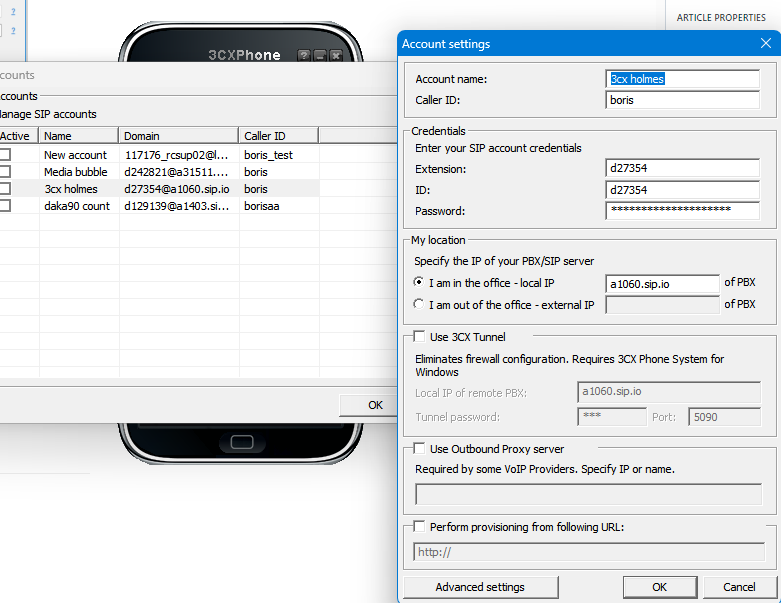
Common mistakes
❌ Using the account number instead of the device username
❌ Typing the domain incorrectly
❌ Forgetting to save the device before configuring
❌ Mixing credentials from different devices
Testing
After configuration:
Place an outbound test call
Verify inbound calls (if DID is assigned)
Check registration status
Summary
To configure 3CX, MicroSIP, or Zoiper, you only need:
Device username (
dXXXXX)Device password
Domain (
a<account>.sip.io)
Once the device is created, setup takes less than 2 minutes.
Was this article helpful?
That’s Great!
Thank you for your feedback
Sorry! We couldn't be helpful
Thank you for your feedback
Feedback sent
We appreciate your effort and will try to fix the article